Beginner's Guide: Difference between revisions
m (→Options Menu) |
|||
| (16 intermediate revisions by the same user not shown) | |||
| Line 1: | Line 1: | ||
This is a spoiler-light guide to the basics of Soul's Remnant, without any links to other pages in the wiki. Click on | This is a spoiler-light guide to the basics of Soul's Remnant, without any links to other pages in the wiki. Some information is omitted for the sake of maintaining that new player experience. | ||
Click on ''Expand'' to reveal information any information you'd like to read about. | |||
<div class="mw-collapsible mw-collapsed"> | <div class="mw-collapsible mw-collapsed"> | ||
| Line 23: | Line 25: | ||
When looking to do your first dungeon, we highly recommend doing a Normal | When looking to do your first dungeon, we highly recommend doing a Normal Slime Garden run. If you need help finding where this dungeon might be, we recommend pressing the Up key on a certain sign in Outskirts Northwest. | ||
'''May your first dungeon run be a good one!''' | '''May your first dungeon run be a good one!''' | ||
| Line 30: | Line 32: | ||
<div class="mw-collapsible mw-collapsed"> | <div class="mw-collapsible mw-collapsed"> | ||
==Death== | ==Death== | ||
<div class="mw-collapsible-content"> | <div class="mw-collapsible-content"> | ||
After taking lethal damage, you will be warped back to Spawn. While you wait, the screen will fade to black as a few messages appear on screen to tell you what you have lost: | After taking lethal damage, you will be warped back to Spawn. While you wait, the screen will fade to black as a few messages appear on screen to tell you what you have lost: | ||
'''EXP loss''':<br> You lose 8% of your current level's EXP | '''EXP loss''':<br> You lose 8% of your current level's EXP. | ||
'''Soul Crystal loss''':<br> You lose 3% of your soul crystals. | '''Soul Crystal loss''':<br> You lose 3% of your soul crystals. | ||
| Line 43: | Line 46: | ||
<div class="mw-collapsible mw-collapsed"> | <div class="mw-collapsible mw-collapsed"> | ||
==Survival Tips== | ==Survival Tips== | ||
<div class="mw-collapsible-content"> | <div class="mw-collapsible-content"> | ||
| Line 73: | Line 77: | ||
Firstly, here are a few extra key combinations that are not shown anywhere in the game. | Firstly, here are a few extra key combinations that are not shown anywhere in the game. | ||
*Toggle UI (F9) | |||
*Toggle Fullscreen (Control + F4) | *Toggle Fullscreen (Control + F4) | ||
*Toggle FPS/Ping Viewer (Control + F3) | *Toggle FPS/Ping Viewer (Control + F3) | ||
Also, Middle Clicking your inventory or storage will organize it! | |||
==Chat Commands== | ==Chat Commands== | ||
| Line 82: | Line 90: | ||
{| class="wikitable" style="margin:left" | {| class="wikitable" style="margin:left" | ||
| /dps|| Calculates your Damage Per Second and displays it in the center of your screen. | | /dps|| Calculates your Damage Per Second and displays it in the center of your screen. | ||
|- | |- | ||
| Line 95: | Line 101: | ||
|- | |- | ||
| /guildleave || Leaves your guild. | | /guildleave || Leaves your guild. | ||
|- | |- | ||
| /housinghelp || Displays some commands for housing. | | /housinghelp || Displays some commands for housing. | ||
| Line 106: | Line 106: | ||
| /housingperms [type] || Used to set who can build in your housing map. (Types can be: public, private, party, or guild) | | /housingperms [type] || Used to set who can build in your housing map. (Types can be: public, private, party, or guild) | ||
|- | |- | ||
| / | | /kill || Kills you. | ||
|- | |- | ||
| /find [name] || Obtain the current map that that player is on. | | /find [name] || Obtain the current map that that player is on. | ||
| Line 130: | Line 130: | ||
The "Build Tgl" key will help you close the Build interface. Remember that when sprucing up your home or setting up a campfire! | The "Build Tgl" key will help you close the Build interface. Remember that when sprucing up your home or setting up a campfire! | ||
'''3)'''<br> Pressing the "Hotbars" keybind, located in the ''Controls → Misc'' tab, will switch you between 3 states: | '''3)'''<br> Pressing the "Hotbars" keybind, located in the ''Controls → Misc'' tab, will switch you between 3 states: Seeing your first hotbar → Seeing both hotbars → Seeing no hotbars ↻ <br> | ||
If Backslash (\) is not a "safe" enough keybind for you, we suggest assigning it to something safer. Accidentally removing your hotbars during a fight is the ''last'' thing you want to have happen. | If Backslash (\) is not a "safe" enough keybind for you, we suggest assigning it to something safer. Accidentally removing your hotbars during a fight is the ''last'' thing you want to have happen. | ||
| Line 139: | Line 139: | ||
<div style="float:right; margin-left:10px;"> | <div style="float:right; margin-left:10px;"> | ||
[[File:Exptracker.png|300px|thumb| | [[File:Exptracker.png|300px|link=|thumb|You can Right Click on one of the bars to reset it!]] | ||
</div> | </div> | ||
{| class="wikitable" style="margin:left" | {| class="wikitable" style="margin:left" | ||
| Line 167: | Line 167: | ||
|} | |} | ||
<!-- | |||
==Linking Discord== | ==Linking Discord== | ||
If we're making a Beginner's Guide, we should also talk about the Discord! | If we're making a Beginner's Guide, we should also talk about the linking to the Discord! | ||
In order to get Patreon benefits and use the Discord Bot, you need to link your accounts. To do this, you can find your account ID and Link Code by logging into the game, and typing: | In order to get Patreon benefits and use the Discord Bot, you need to link your accounts. To do this, you can find your account ID and Link Code by logging into the game, and typing: | ||
| Line 177: | Line 178: | ||
!checklink | !checklink | ||
Once linked, you can use the Discord Commands! | Once linked, you can use the Discord Commands! | ||
--> | |||
==Discord Commands== | ==Discord Commands== | ||
Commands for Discord :) | Commands for Discord :) | ||
Latest revision as of 02:52, 13 October 2025
This is a spoiler-light guide to the basics of Soul's Remnant, without any links to other pages in the wiki. Some information is omitted for the sake of maintaining that new player experience.
Click on Expand to reveal information any information you'd like to read about.
Nighttime
Night lasts for roughly twenty-two real world minutes, from 7pm to 5am in World Time. The background music changes, most maps grow dark and make every source of light that much more precious.
And whatever other changes night may or may not bring is for you to discover.
Dungeons
Dungeons contain valuable items within. Clearing a dungeon will net you some of those valuables, along with a good amount of Player EXP. To enter a dungeon you must first be in a party, and the party leader must have at least one type of Dungeon Pass in their inventory. Normal, Hard, or Extreme. Upon interacting [spacebar] with the floating crystal, a window will appear. The party leader must then drag their chosen Dungeon Pass into the designated box as an offering. Greater difficulties yield greater rewards, but they also demand that you fight harder foes. Good luck!
After clicking "Enter", the offered Dungeon Pass will be erased from the party leader's inventory, and the party will be sent into the Dungeon Entrance. The dungeon's layout will be mapped in the upper right-hand corner of your screen as you progress.
Every dungeon that you enter is procedurally generated, making each run different from the last.
When looking to do your first dungeon, we highly recommend doing a Normal Slime Garden run. If you need help finding where this dungeon might be, we recommend pressing the Up key on a certain sign in Outskirts Northwest.
May your first dungeon run be a good one!
Death
After taking lethal damage, you will be warped back to Spawn. While you wait, the screen will fade to black as a few messages appear on screen to tell you what you have lost:
EXP loss:
You lose 8% of your current level's EXP.
Soul Crystal loss:
You lose 3% of your soul crystals.
Survival Tips
While doing more damage is always great, it's important to keep yourself alive and healthy. In order to do that, here are a few tips!
Joining a Guild
A helpful Guild is one of the best ways to keep yourself alive! Not only because you'll have people looking out for you, but also because of Guild Perks. There are a variety of perks, some of them being very handy in keeping you in the fight!
CON
Try adding a few of your Stat points into CON. Even just 4 points into CON can noticeably increase your health pool, as well as increase your DEF by 1!
Portal Crystals
When used, items like Return Crystals will create a portal directly behind its user. A Return Crystal, for example, will open a white portal that leads directly to Spawn. It's not only convenient, it can be absolutely life-saving!
- Note: Portal Crystals cannot be used near other portals. If you're fighting a dangerous enemy near a portal, don't waste time trying to use a crystal!
Campfires
Placing a Campfire down will not only create a source of light in the map, but it will also increase the health recovery and mana recovery of everyone near it! You can't place any campfires down in a Dungeon, but that only shows how powerful they are! Keeping a few campfires on hand can be very convenient, if not outright necessary when trying to hunt down monsters above your level.
- Note: Campfires cannot be placed underwater. Don't venture into the beach or the ocean thinking you can use campfires!

Menu Tips
We also want to help make menu navigation easier for any newcomers, so below are a few reminders and tips!
Firstly, here are a few extra key combinations that are not shown anywhere in the game.
- Toggle UI (F9)
- Toggle Fullscreen (Control + F4)
- Toggle FPS/Ping Viewer (Control + F3)
Also, Middle Clicking your inventory or storage will organize it!
Chat Commands
These are chat commands used within Soul's Remnant.
| /dps | Calculates your Damage Per Second and displays it in the center of your screen. |
| /guildinvite [name] | Invites a player to your guild. |
| /guildkick [name] | Kicks a player from your guild. |
| /guildaccept | Accepts a guild invite. |
| /guilddecline | Declines a guild invite. |
| /guildleave | Leaves your guild. |
| /housinghelp | Displays some commands for housing. |
| /housingperms [type] | Used to set who can build in your housing map. (Types can be: public, private, party, or guild) |
| /kill | Kills you. |
| /find [name] | Obtain the current map that that player is on. |
| /save | Force save your data. Can be used once per a minute. (The game autosaves every once in a while, so this isn't super necessary) |
| /time | Gives the current World Time. |
| /w [name] [message] | Used to send messages that only the specified, online player can see. Purple Text. |
| /p [message] | Used to send messages that only your party member(s) can see. Blue text. |
| /g [message] | Used to send messages that only your guildmate(s) can see. Green text. |
Options Menu
You can access the Options Menu after pressing the ESC key. We recommend reading through all the tabs to see what you can do and how you can do it. Here are some notable details!
1)
Inside the General → General tab is a toggle for something called "Auto Strafe on Skill Use", and in the Controls → General tab is the option to bind your "Strafe" key.
Strafing refers to the ability to keep facing a chosen direction regardless of how you move. It can be a very useful tool in continuing to damage the enemy while walking away from them!
2)
All the keybinds below "Strafe" in the Controls → General tab are related to Housing. Also, Campfires.
The "Build Tgl" key will help you close the Build interface. Remember that when sprucing up your home or setting up a campfire!
3)
Pressing the "Hotbars" keybind, located in the Controls → Misc tab, will switch you between 3 states: Seeing your first hotbar → Seeing both hotbars → Seeing no hotbars ↻
If Backslash (\) is not a "safe" enough keybind for you, we suggest assigning it to something safer. Accidentally removing your hotbars during a fight is the last thing you want to have happen.
4)
And finally, inside the Controls → Misc tab are keybinds you can press to summon a collection of fun little emoticon. Use them as you please <3
Quick Menu
Clicking the "Menu" button, which is in the bottom right corner of the screen by default, will open the "Quick Menu". Here's what it looks like:
| World Map (M) |
| Inventory Menu (I) |
| Equipment Menu (L) |
| Stats Menu (O) |
| Skills Menu (K) |
| Crafting (Comma) |
| Quests (Forward Slash) |
| Research Menu (B) |
| Buddies (Period) |
| Party Menu (P) |
| Guild Menu (N) |
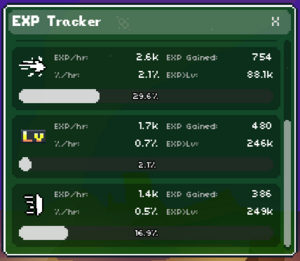
| EXP Tracker |
Discord Commands
Commands for Discord :)
| Control + Left Click item within inventory | Shares the item on Discord for others to see! |
| !rewards | Provides a step-by-step guide to getting Private Test Access for Patreon supporters! |
| !profile | Shows the badges you have on your Chaomoon Account. Your Discord account must be linked for this to work. |
| !profile [account name] | Shows the badges a Chaomoon Account has. |